Translate one real screen
- Start the guided iOS screen flow
- Pick a source and target language
- Move the floating window where it belongs

 PiP Translate
Useful in places where normal translate buttons disappear
Most translation tools make you stop what you were doing. Screenshot, open another app, crop the image, read the result, then find your place again.
PiP Translate keeps the source app alive. The translation appears in a small window that can be moved, pinned, and checked while the original screen stays visible.
It feels less like translating a screenshot and more like turning on subtitles for the phone.
Early user feedback
0:06  PiP Translate
Useful across common languages. OCR quality still depends on text size, contrast, motion, and font style.
The hard part is not translating one phrase. It is staying oriented after every crop, share sheet, gallery switch, and app reload. PiP Translate keeps the work on the screen you were already using.
✓ Pause translation before private content appears.
✓ Move the window away from buttons, subtitles, or form fields.
✓ Keep the original visible for names, prices, dates, and context.
✓ Copy the result only when you need it elsewhere.
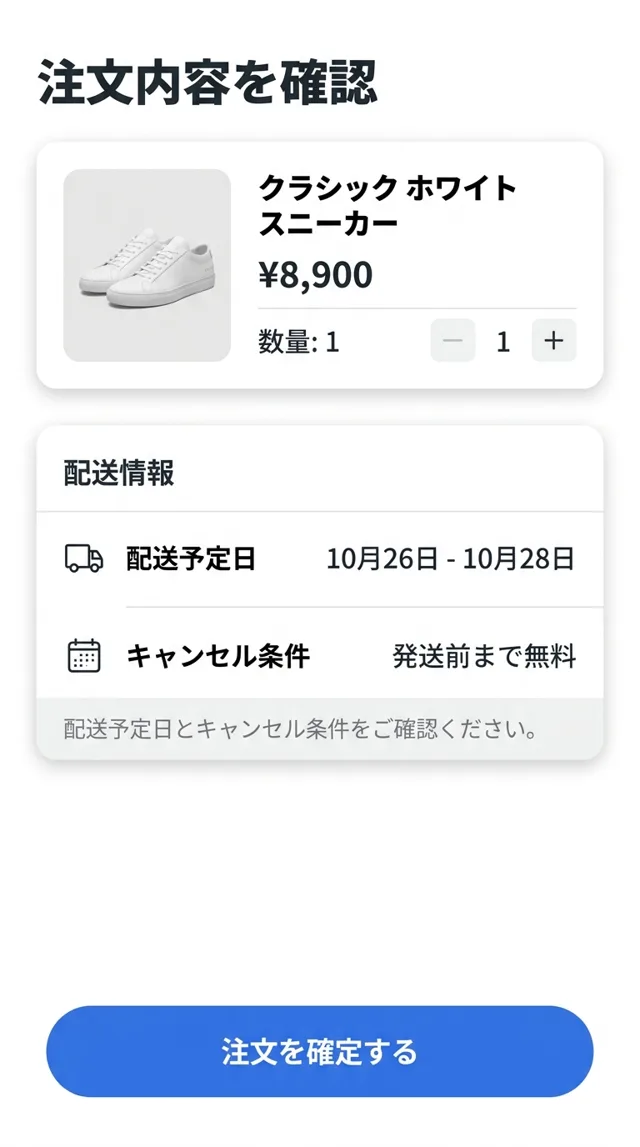
Check the delivery date and cancellation terms before continuing.
Small habit, large workflow change
The app is useful precisely in messy places: image-heavy screens, menus, captions, imported apps, shopping flows, and pages where the text is visible but not selectable.
Taobao listings, size charts, seller chats on WeChat, and the checkout total, readable before you pay.
Speech bubbles, menus, and chapter screens stay visible while the translation sits in the floating window.
Event notices, quest text, and settings can be checked without leaving the game.
Transit apps, ticket machines, maps, kiosks, and booking flows can be understood step by step.
Captions, comments, creator bios, and embedded text can be translated when the app offers no language switch.
Keep the original text nearby so translation helps you learn instead of replacing the source.
The value is not a settings list. It is getting through the screen in front of you: the chapter, the game event, the checkout, the ticket, the caption, the form.
Use case notes
I can keep the page open and check the line without hunting through screenshots.
Manga readerUseful for the boring details: station labels, ticket rules, and tiny confirmation screens.
Japan travelerIt helps with event notices and item descriptions when the global version is months behind.
Game playerYou start the screen translation flow yourself from iOS. Use it for the screen in front of you, then stop when you are done. No account wall before trying the core workflow.
Translate the current screen, then get back to reading, playing, shopping, or traveling.
Built for quick sessions
Start and stop from iOS, so the user stays in control of when translation is active.
User-started workflow
How it works
Install PiP Translate for iPhone from the App Store.
Pick languages and begin the guided screen flow.
Keep your app open while the window floats above it.
If you cannot find the answer below, email us from the footer.
Yes. It reads visible text from the screen after you start the iOS broadcast flow, then shows a floating translation window.
No. The point is that it works over native iPhone apps, games, readers, and feeds, not just websites.
The app is designed for live translation, not screen archiving. You start and stop the screen flow yourself from iOS.
Almost always the source language. Set it to the language on screen, for example Chinese, instead of leaving it on Auto. A wrong guess returns the original text unchanged.
Small text, stylized fonts, animation, handwriting, and cropped captions can reduce OCR and translation quality.