Korean Apps in English on iPhone: Coupang, Naver Map, KakaoTalk and the Screens That Stay Korean
Whether you just moved to Seoul, have a trip booked, or shop Korean stores from abroad, you hit the same wall within a day: getting Korean apps in English on iPhone only half works. The big apps have added English to their menus. The part you actually came to read, the product page, the restaurant reviews, the group chat, is written by people, and people in Korea write in Korean.
This guide covers the three apps people search for most, Coupang, Naver and KakaoTalk, plus Karrot, in the order that wastes the least time: find the English that exists, use Papago for what it does well, and read the rest in a floating window.
Check the app’s language setting first
Two places to look before installing anything:
- iOS Settings → Apps → the app’s name → Language. This row only appears if the app ships more than one language and your iPhone has more than one preferred language set. If it’s there, you can put that one app in English without changing your whole phone.
- Inside the app’s own settings. Look for a globe icon, the word “Language”, or 언어.
Some Korean apps simply follow your iPhone’s system language, so if your phone is already in English you may be seeing all the English there is. Language support also changes between versions, so treat everything below as a snapshot at the time of writing and check the setting yourself.
The pattern you’ll find: an English mode translates the app’s shell. Listings, reviews, menus and messages stay Korean.
Korean apps in English: Papago, and a floating window for the rest
Papago, Naver’s translator, is the Korean translator app most residents install first. Korean is its home language, and it handles everyday phrasing well. Use it for typed or pasted text in both directions, voice and two-way conversation at a counter or in a taxi, and photos of signs, paper menus and parcel labels. If you need to write Korean, reply to a landlord or a seller, Papago is the right tool and nothing in this article replaces it.
Where it stops: Papago doesn’t float over other apps. To read a screen in Coupang, you screenshot it, switch to Papago, import the image, read, switch back and try to remember which button was which. Fine for one screen, tiring for a checkout flow. That’s not an oversight on Naver’s part; iOS doesn’t let an app draw on top of another one.
The one thing iOS does keep on top of other apps is the Picture in Picture window, and PiP Translate (App Store name: PiP Screen Translate) uses it for translation:
- Open PiP Translate, set Korean as the source language, and start the iOS screen broadcast.
- Switch to the Korean app.
- A separate floating window appears next to it, showing the same screen with the text in English.
Scroll or open a product and the window follows. Drag it to any corner, pinch to resize it, or swipe it off the edge. It doesn’t rewrite the app or draw over the Korean text: you tap the app’s Korean buttons while reading the English copy in the window.
Pick Korean explicitly rather than Auto. On screens that mix Korean and English, auto-detect can guess wrong, and a wrong guess comes back untranslated. Text recognition runs on the phone; only the recognized text goes to the cloud for translation. It’s free to download; unlimited translation needs a Pro subscription. For the same technique in any language, see translating your iPhone screen live.
Coupang English: menus partly, listings not
Coupang is the one people search for most, and the honest answer is that Coupang’s English is incomplete. It has been rolling out English in parts of the app, and how much of the interface you get depends on your app version and the screen you’re on. Check your language setting first.
What no setting changes: product titles, option names, the long detail section (often one tall image full of Korean text) and reviews are written by sellers and buyers, in Korean. That’s exactly what decides whether you buy.
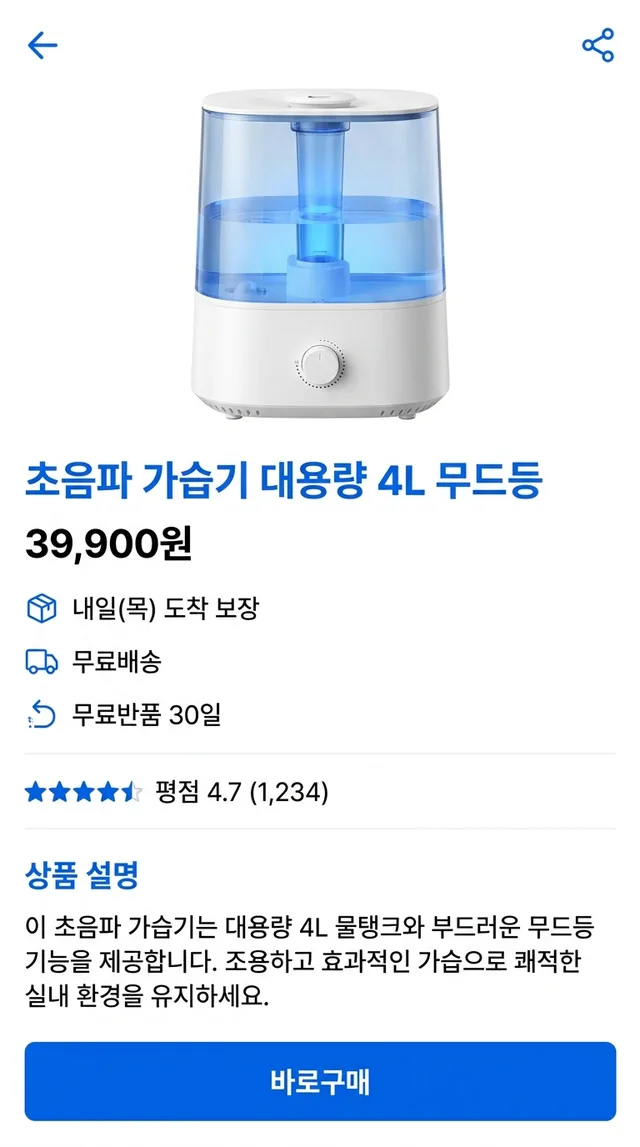
 PiP Translate

A Korean product page for a humidifier underneath, the same screen in English in the floating window
With the window open, you shop at normal speed: search results, options, the delivery promise, detail images, reviews. Because the window reads whatever is on screen, it doesn’t matter that the detail section is a picture rather than text. Zoom into tiny print in those images first; it reads much better large.
These terms come up on nearly every product page. The window translates them, but literal translations can be vague, so it helps to know what they mean in practice:
| Korean | What it means for you |
|---|---|
| 로켓배송 | Rocket Delivery: Coupang’s own fast-delivery service, as opposed to a third-party seller shipping it |
| 도착 보장 | Guaranteed arrival by the date shown, e.g. 내일(목) 도착 보장 = arrives tomorrow (Thursday) |
| 무료배송 | Free shipping |
| 무료반품 | Free returns, usually within a stated window such as 30 days |
| 품절 | Sold out |
| 옵션 | Option: the size, colour, quantity or bundle you pick; prices can differ per option |
| 리뷰 | Reviews |
| 바로구매 | Buy now: skips the cart and goes straight to checkout |
Watch the 옵션 dropdown in particular. The headline price is often the cheapest option, and the one you actually want may cost more.
Before you pay, re-check the final amount, the delivery address and the return terms on the checkout screen yourself. Translation helps you understand the page; the order you confirm is still yours.
Naver English: Naver Map and Naver search
“Naver English” usually means one of two apps.
Naver Map has an English mode, and searching places, public transport directions and walking routes work reasonably well with it. What stays Korean: visitor reviews, menus photographed or typed by restaurants, opening-hour notes such as holiday closures or break times, and most of the business information the owner wrote. With the floating window open, you can read a restaurant’s reviews and menu tab in English while keeping the map in front of you, which beats screenshotting each tab into a translator.
Naver search is a Korean-language portal. Whatever the app’s menus say, the results you care about, blog posts, cafe threads, local shopping listings and news, are written in Korean. Safari’s built-in page translation works on the website version for text, but not on text inside images or once a link bounces you into another app. The floating window covers both, since it reads the screen rather than the page.
Tip for both: Korean queries return far better results than English ones, so get the Korean name from Papago when you can.
KakaoTalk English: interface yes, content no
KakaoTalk’s interface is available in English, so settings, menus and the chat list will read fine. The content inside does not change:
- Chats and group chats. Messages are in whatever language people typed, which in Korea means Korean. Your building’s group chat, your hagwon’s parent chat, your landlord.
- Channels. Businesses, clinics and government offices post notices and send messages through Kakao channels, in Korean.
- Gifts. The gift shop and the gift cards people send you are Korean pages with Korean terms and expiry conditions.
For reading a busy group chat, the floating window is the practical option: scroll the thread and read along in English instead of copying bubbles one at a time. For replying, use Papago; the window reads, it doesn’t write. For anything that involves money, a bank transfer request, a deposit, a payment link, confirm the amount and the sender with the person or the official channel before acting on a translation.
Karrot (당근) and the rest
Karrot (당근, formerly 당근마켓) is Korea’s neighbourhood second-hand marketplace. Listings and chats are written by your neighbours in Korean, and translation works the same way as on Coupang. Two words worth recognising: 나눔 (giving away for free) and 직거래 (a meet-up handover in person).
The same approach covers delivery apps, banking and payment apps (some offer an English mode or a version for foreign residents, check first), government services, school notices in parent apps, and webtoons, where PiP Translate’s Manga Mode covers Korean sources. Students should also see apps for international students; if you split time with Japan, there’s a companion guide to Japanese apps in English.
Honest limits
- The translation trails the screen by about one to two seconds. Scroll, pause, read.
- Very small text, handwriting and decorative banner fonts are the weak spots. Zooming in helps a lot.
- It doesn’t change the app underneath. You still tap the Korean buttons, and you still need Papago to write anything.
- Some apps blank their content while the screen is being captured. DRM-protected video is the usual case, and a security-conscious banking app may do the same. Then iOS hands every screen-reading app a black frame, and there is nothing to translate.
- For money, medicine or legal status, use the window to find your way around, then confirm the screen that matters with Papago, the official channel or a Korean speaker before you press confirm.
PiP Translate is on the App Store. Keep Papago next to it: one for writing Korean, the other for reading the apps.
FAQ
Does Coupang have English?
Partly. Coupang has been adding English to parts of its app, and how much you see depends on the app version and where you are in it. Product listings, the long detail images and customer reviews are written by sellers and buyers in Korean, so they stay Korean whatever the setting. A screen translator such as PiP Translate can show those screens in English in a floating window.
Does Naver Map work in English?
Yes, Naver Map has an English mode, and searching places and getting directions works with it. Reviews, menus, opening-hour notes and most business details are written in Korean and stay that way.
Can I change KakaoTalk to English?
Yes, KakaoTalk's interface is available in English; check the app's settings or the iOS per-app language setting. Chats, channel posts and gift pages stay in Korean, because that is the language they were written in.
How do I translate Korean apps on iPhone?
Use the app's English setting first. For single messages, or when you need to write Korean, use Papago. For screens that stay Korean, start a screen broadcast in PiP Translate with Korean set as the source language; a floating Picture in Picture window shows the same screen in English while you keep using the app.